Assistify: File Uploader
About Course
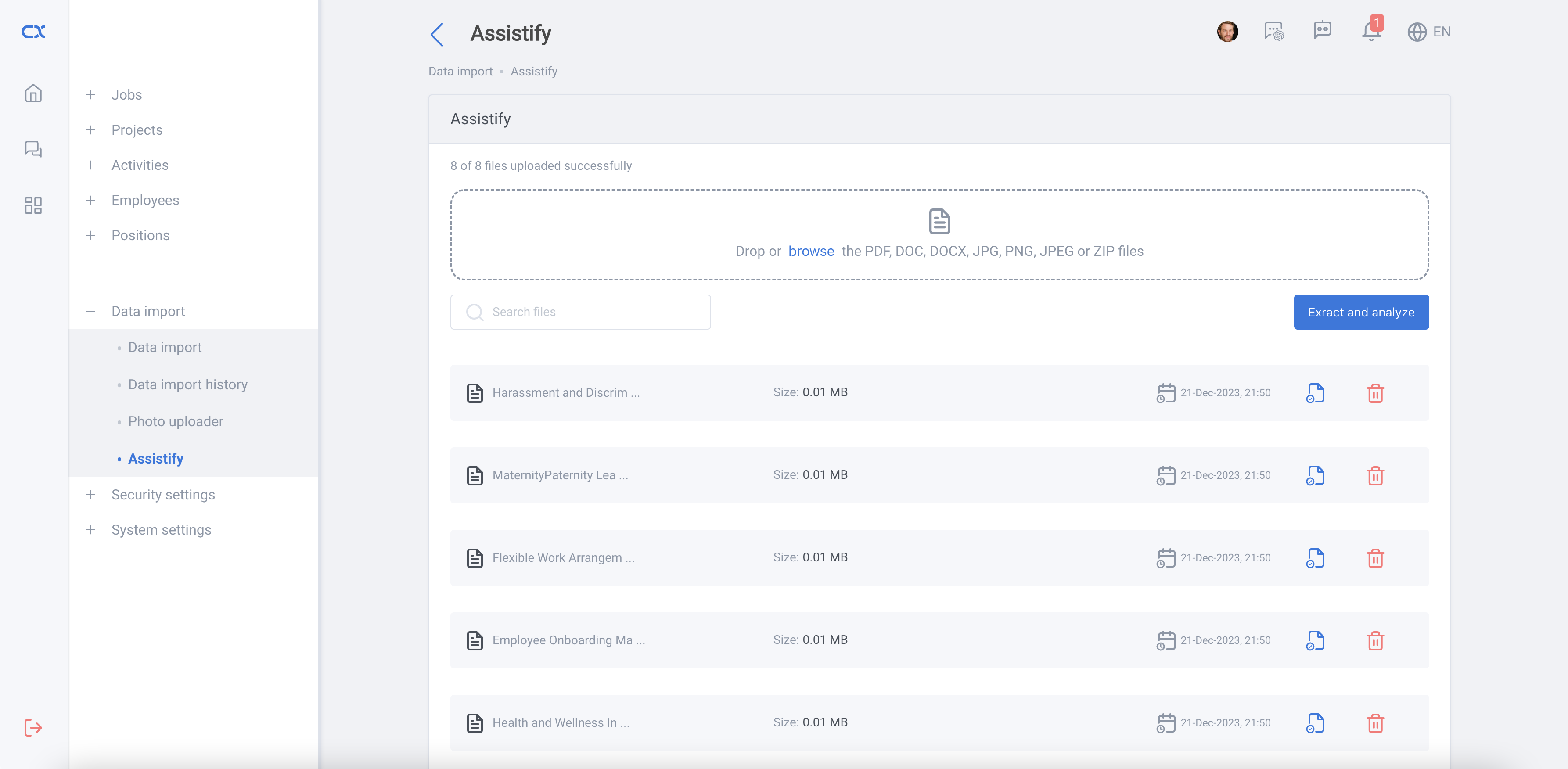
Assistify will learn from provided documents and answers questions accordingly. With this feature, it is possible to manage these documents and retrain the AI according to the business needs.
There are 2 main steps for a successful Assistify file upload
-
Uploading Files
- Upload related files (PDF, DOC, DOCX, or ZIP) files
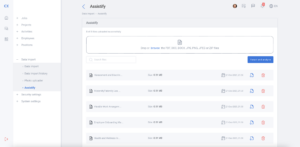
- If any of the file upload fails, error will be shown on the page
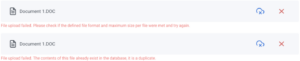
- If the file upload succeed, a succeed icon will be shown
 This indicates that we are ready to the next step
 - Once you have uploaded all necessary files, press the extract and analyze button. This button is for extracting and analyzing the content of the uploaded files
- Upload related files (PDF, DOC, DOCX, or ZIP) files
-
Extracting and analyzing Files
- Upon clicking extract and analyze button, a progress icon will be shown indicating that the files are being extracted and analyzed

- Once, the extract and analyze process finished, a successful icon will be shown

- If any error occurs during extract and analyze process, an error will be shown telling user the reason of error

- Upon clicking extract and analyze button, a progress icon will be shown indicating that the files are being extracted and analyzed
Assistify file upload History
User can see a file upload history after successfully uploading a file or successfully extracting and analyzing files.
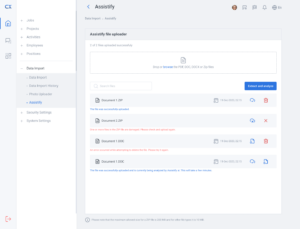
there are 3 possible cases for the date shown:
- File was uploaded successfully
- File was uploaded successfully and the user click ‘Extract and Analyze’ button
- File was extracted and analyzed successfully