Getting started: The Top Bar
About Course
Welcome to the “Getting Started” course! In this course, we’ll walk you through the home page of our E-learning platform. We’ll explain its main features and how to use them. You’ll learn about the layout, the course catalog, your personalized learning dashboard, and the interactive tools available. We’ll also introduce you to our AI-powered CX Copilot, which will be there to assist you. By the end of this course, you’ll feel comfortable navigating the platform’s home page and be ready to begin your learning journey. Get ready to explore the user-friendly world of our E-learning platform.

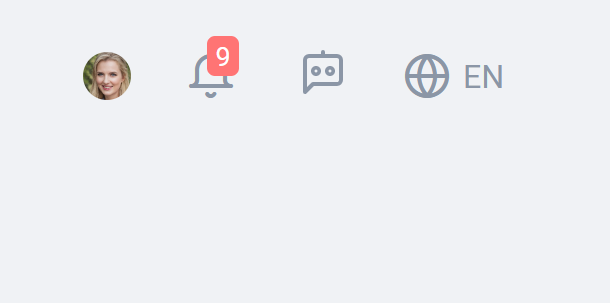
The Top Bar of the main site serves as a convenient and accessible navigation hub, offering users quick access to essential functionalities and options. It enhances the user experience by providing personalized settings, keeping users informed about site-specific updates, offering instant support within the main site’s context, and accommodating different language preferences.
Profile: The “Profile” button grants users, access to their personal profiles on the main site. By clicking this button, users can view and manage their account information, update preferences, and track progress related to the main site’s content and features. It provides a personalized space for users to customize their experience and access relevant resources within the main site context.

After clicking the profile button on the top bar of the site, a box will open with several options:
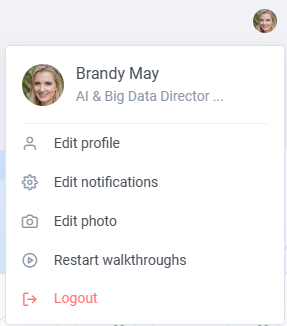
- Edit Profile: The “Edit profile” option allows users to update and modify their personal information within the main site. Users can edit details such as their name, email address, and any other relevant information associated with their profile. This option ensures that users can keep their profile information accurate and up to date.
- Edit Notifications: The “Edit notifications” option enables users to customize their notification preferences on the main site. Users can choose the types of notifications they wish to receive, such as new job recommendations, status updates, or new messages, and set their notification preferences accordingly. This feature ensures that users receive relevant and timely information that aligns with their specific interests and needs.
- Edit Photo: The “Edit photo” option allows users to add or update their profile picture on the main site. Users can upload an image to personalize their profile and enhance their presence within the site’s community. This option helps users create a more engaging and recognizable profile that reflects their identity.
- Restart Walkthroughs: The “Restart walkthroughs” option provides users with the ability to restart any guided tour or tutorial that introduces them to the main site’s features and functionalities. By selecting this option, users can revisit the initial onboarding experience, ensuring they have a clear understanding of how to navigate and utilize the site’s resources effectively.
- Logout: The “Logout” option allows users to securely log out of their account on the main site. By clicking this option, users will be logged out, ensuring their account remains protected and inaccessible to unauthorized individuals. It’s an essential feature for maintaining account security and privacy.

Notifications: The “Notifications” button serves to keep users informed about important updates and activities specifically related to the main site. It acts as a central hub for receiving alerts, reminders, and announcements about new content, events, or any relevant information within the main site. Users can stay up to date with the latest developments, changes, and news directly through the notifications feature.
After clicking the “Notifications” button on the top bar of the site, a box will open with two options:
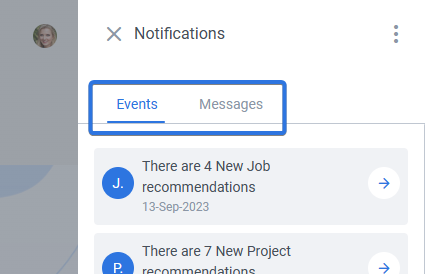
- Events: The “Events” tab focuses on notifications related to job, activity, or project applications and responses. Users will receive alerts and updates when there are new job applications, activity participation requests, or responses to project applications. This feature keeps users informed about relevant activities and interactions within the main site, ensuring they stay updated on any new opportunities or responses related to their applications.
- Messages: The “Messages” tab is dedicated to facilitating communication between employees and employers on the main site. Users can expect notifications about new messages, replies, or important conversations with potential employers or fellow employees. This feature allows users to engage in direct and meaningful conversations, fostering effective communication and collaboration within the main site’s community.

CX Copilot: The “CX Copilot” button opens up a chat interface where users can interact with an AI-powered virtual assistant within the main site. This CX Copilot is designed to provide instant support, answer questions, and offer guidance in relation to the site’s features, functionalities, and content. It acts as a valuable resource for users, enabling them to receive real-time assistance and tailored information within the main site’s context.

Language: The “Language selection” button allows users to choose their preferred language for accessing and navigating the main site. It ensures that users can explore and interact with the site’s content in their desired language, making the experience more inclusive and accessible. Users can select their preferred language to effectively engage with the main site’s features, courses, and other resources.